

If you want a CapCut alternative for PC that runs as a native Windows app, ClipForge is built for that job. It is a video editor for your computer: you import clips, edit them on a real timeline, add titles and music, and export an MP4 for YouTube, Shorts, or Reels. It is free to install from the Microsoft Store, and it works offline with no account.
CapCut is a well-known editor, especially on phones, and it has a large library of templates and effects. This page is an honest comparison for people who searched for a CapCut alternative on Windows — not a claim that ClipForge is CapCut, or that it copies every CapCut feature. CapCut is a trademark of its owner. ClipForge is made by Amezing Tech and is not affiliated with, endorsed by, or sponsored by CapCut or ByteDance.
Why people look for a CapCut alternative for Windows
A lot of “CapCut for PC” searches come from people who want to edit on a desktop, with a mouse and a larger screen, and then post the same short-form video they would otherwise make on a phone. Others want an editor that keeps projects on the PC, does not require a product account, and can generate captions on the computer itself.
ClipForge is aimed at that group. It is a Windows desktop app, delivered through the Microsoft Store, with a multi-track timeline and export presets for 16:9, 9:16, square, and 4:5. Auto captions, when you use ClipForge Pro, run on your PC after a one-time download of the speech model. Nothing is uploaded to a ClipForge server to make those captions.
ClipForge at a glance
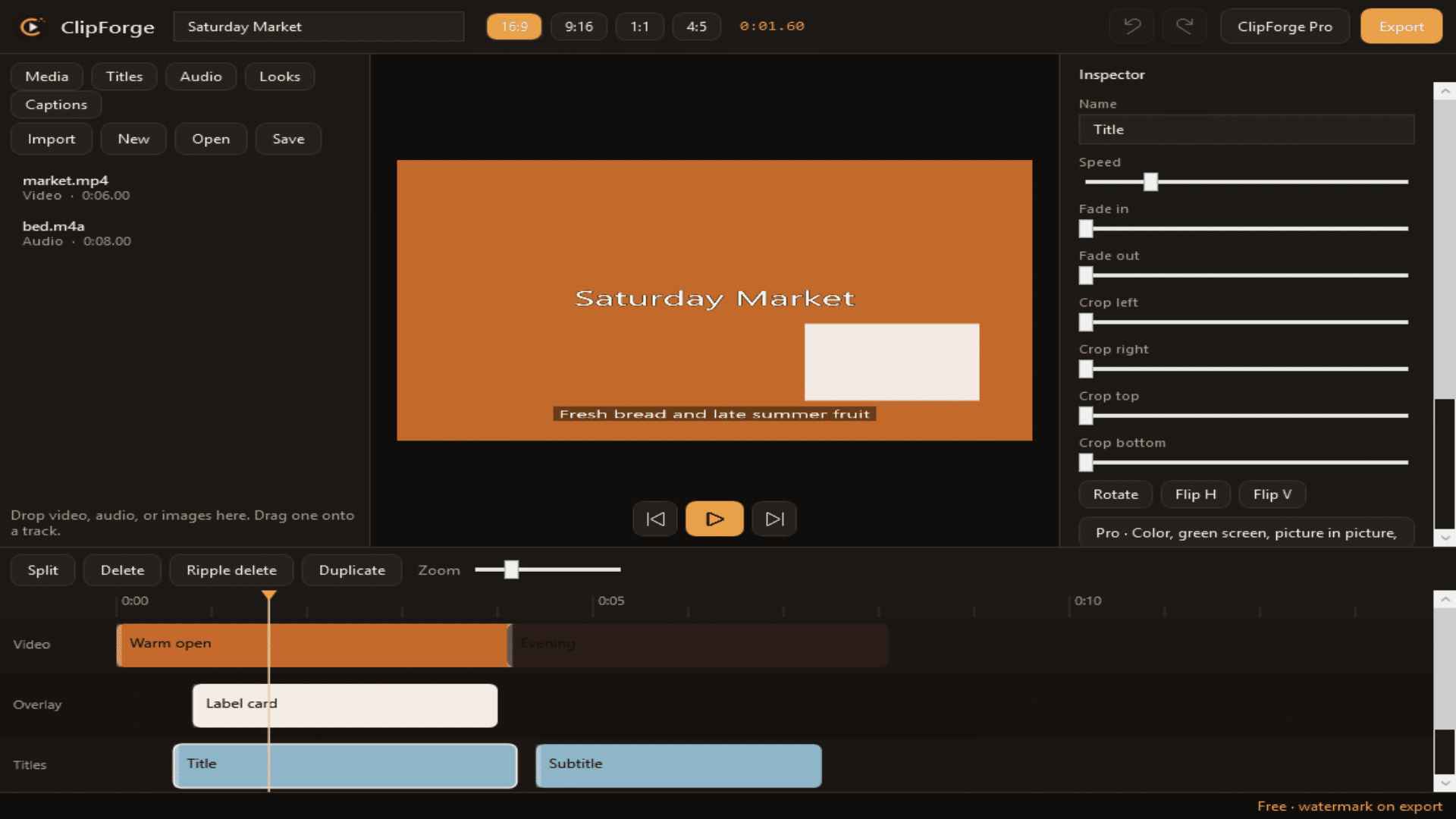
- Platform: Windows, from the Microsoft Store
- Price: Free to install. ClipForge Pro is $14.99 per month through the Store, with a 7-day trial when that add-on is offered.
- Editing: Multi-track timeline for video, overlays, titles, and audio. Trim, split, join, speed, crop, rotate, and flip.
- Export: MP4. Free edition is H.264 up to 1080p, with a small “Made with ClipForge” line. Pro removes that line and adds 4K, 60 fps, and H.265.
- Captions (Pro): Speech-to-text on this PC, plus SRT export and burned-in subtitles.
- Privacy: No ClipForge account and no analytics. Projects stay on your computer. The app does not start when you sign in to Windows.
Get ClipForge free on the Microsoft Store
CapCut vs ClipForge: what actually differs
Use this as a buying guide, not a feature-for-feature clone list. CapCut’s strength is a large template and effects library, and a workflow that spans phones and desktops. ClipForge’s strength is a straightforward Windows timeline, Store install, offline use, and captions that stay on your PC.
| What you need | ClipForge on Windows | Typical CapCut-style workflow |
|---|---|---|
| Install on a Windows PC | Yes, from the Microsoft Store, as a desktop app | CapCut also offers a Windows app, plus a strong mobile app |
| Timeline editing (trim, split, join, speed, crop) | Yes, on video, overlay, title, and audio tracks | Yes, with a large set of effects and templates around the timeline |
| Titles, music, fades, and volume | Yes, including crossfade and fade to black | Yes, with a much larger effects and transition library |
| Export for YouTube, Shorts, and Reels | 16:9, 9:16, square, and 4:5 presets, with a preview before export | Yes, with many social presets and template-based exports |
| Free export | H.264 up to 1080p, with a small “Made with ClipForge” line | CapCut’s free terms and watermarks have changed over time; check the current CapCut app for its own rules |
| Export without a watermark | ClipForge Pro removes the ClipForge line, and adds 4K, 60 fps, and H.265 | Usually tied to CapCut’s own paid plan; we do not restate their current price here |
| Auto captions | Pro: created on your computer, with SRT and burned-in subtitles | CapCut offers captions and a wide set of related text tools, often tied to its cloud and account |
| Green screen, picture-in-picture, color, keyframes | Yes, with ClipForge Pro | Yes, plus a much larger effects catalog |
| Screen recording | Pro: record the screen, with an optional webcam, straight onto the timeline | Depends on the CapCut version and platform |
| Templates, stock effects, and mobile–desktop sync | No template marketplace and no phone companion app in this release | This is CapCut’s main advantage, especially if you start on a phone |
| Account, cloud, and analytics | No ClipForge account. Projects stay on the PC. No product analytics | CapCut generally uses an account and online features for a large part of its library |
| Works offline | Yes, after install. Captions need a one-time on-device model download | Many CapCut features expect a connection, especially templates and cloud effects |
What you can do in the free editor
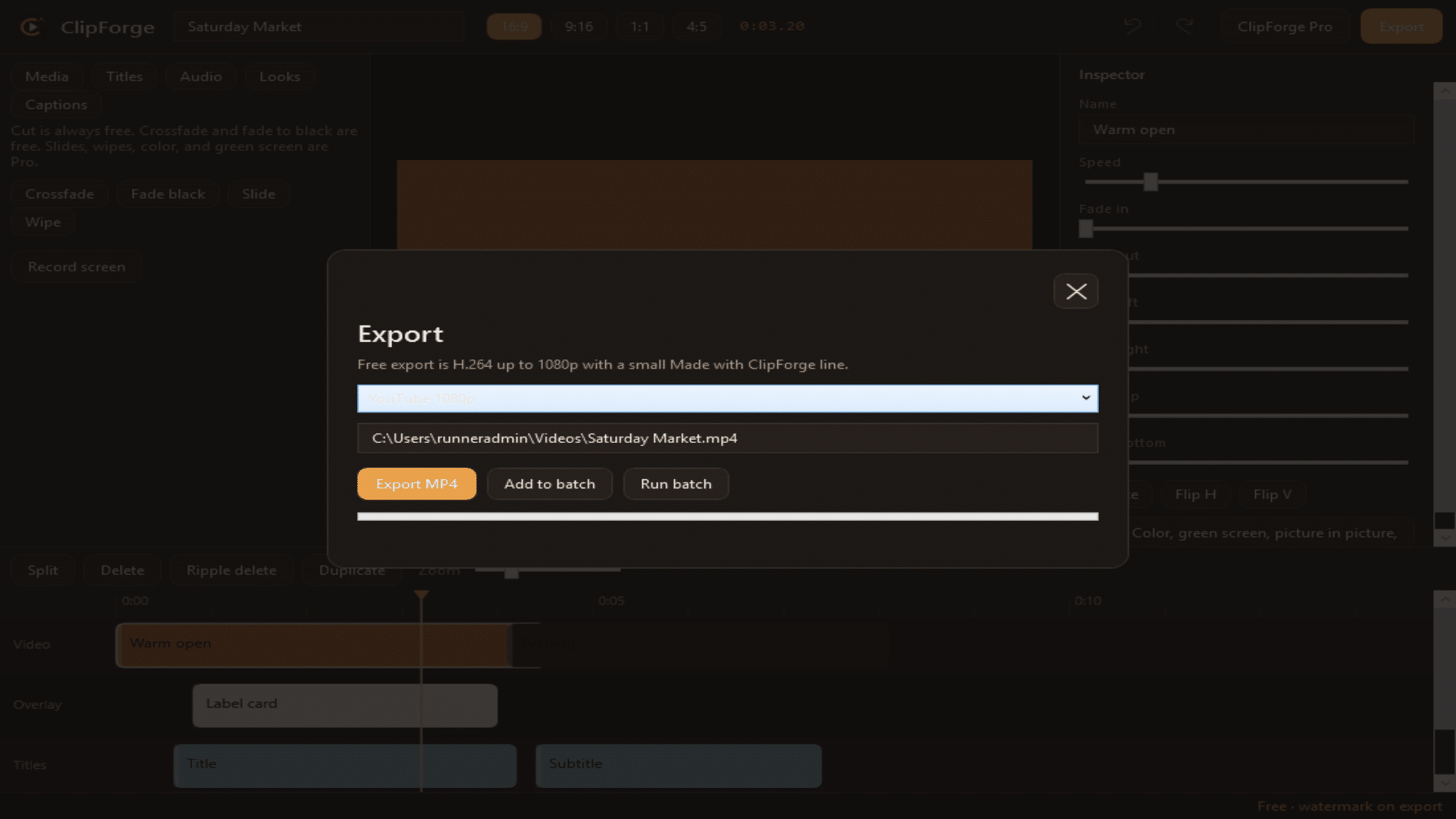
The free edition is a complete starter editor, not an empty demo. You can import MP4, MOV, MKV, and common audio and image files, arrange them on the timeline, and export an MP4 you can post.
- Drag clips into place, then trim, split, or join them
- Change speed, crop, rotate, and flip
- Add titles and background music, with volume and fades
- Crossfade and fade to black
- Undo and redo, and a recovery copy if the app closes unexpectedly
- Preview the result, then export H.264 up to 1080p
The free export includes a small “Made with ClipForge” line on the picture. If you need that removed, or you want 4K and captions, that is what ClipForge Pro is for.
ClipForge Pro: when the $14.99 plan is worth it
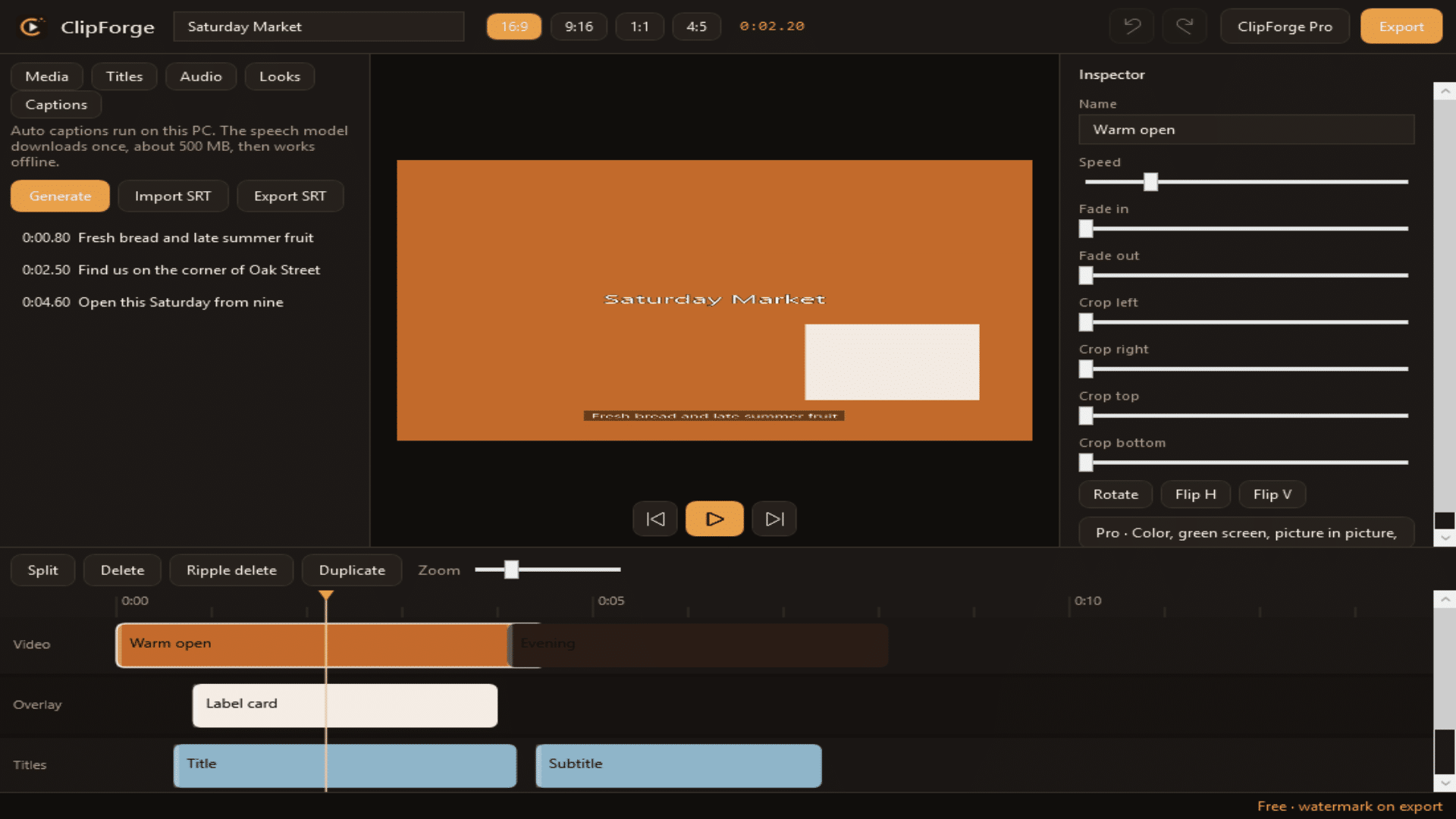
ClipForge Pro is a Microsoft Store subscription at $14.99 a month. When the Store add-on includes a trial, that trial is 7 days. Pro is meant for people who publish often and want the paid tools in one place, rather than a pile of one-off utilities.
- Export without the watermark, up to 4K and 60 fps, plus H.265
- Auto captions from speech, on this PC, with SRT export and burned-in subtitles
- Green screen and solid-color background removal
- Keyframes for position, scale, and opacity
- Color controls and original looks
- Picture in picture
- Slide and wipe transitions, and title animation
- Noise reduction, and music that ducks under speech
- Batch export and your own export presets
- Record the screen, with an optional webcam, onto the timeline
If you only trim a clip now and then, the free edition is enough. If you ship Shorts or Reels every week, need captions, or do not want a watermark on a client video, Pro is the plan that matches that work.
Apps like CapCut for Windows: who ClipForge is for
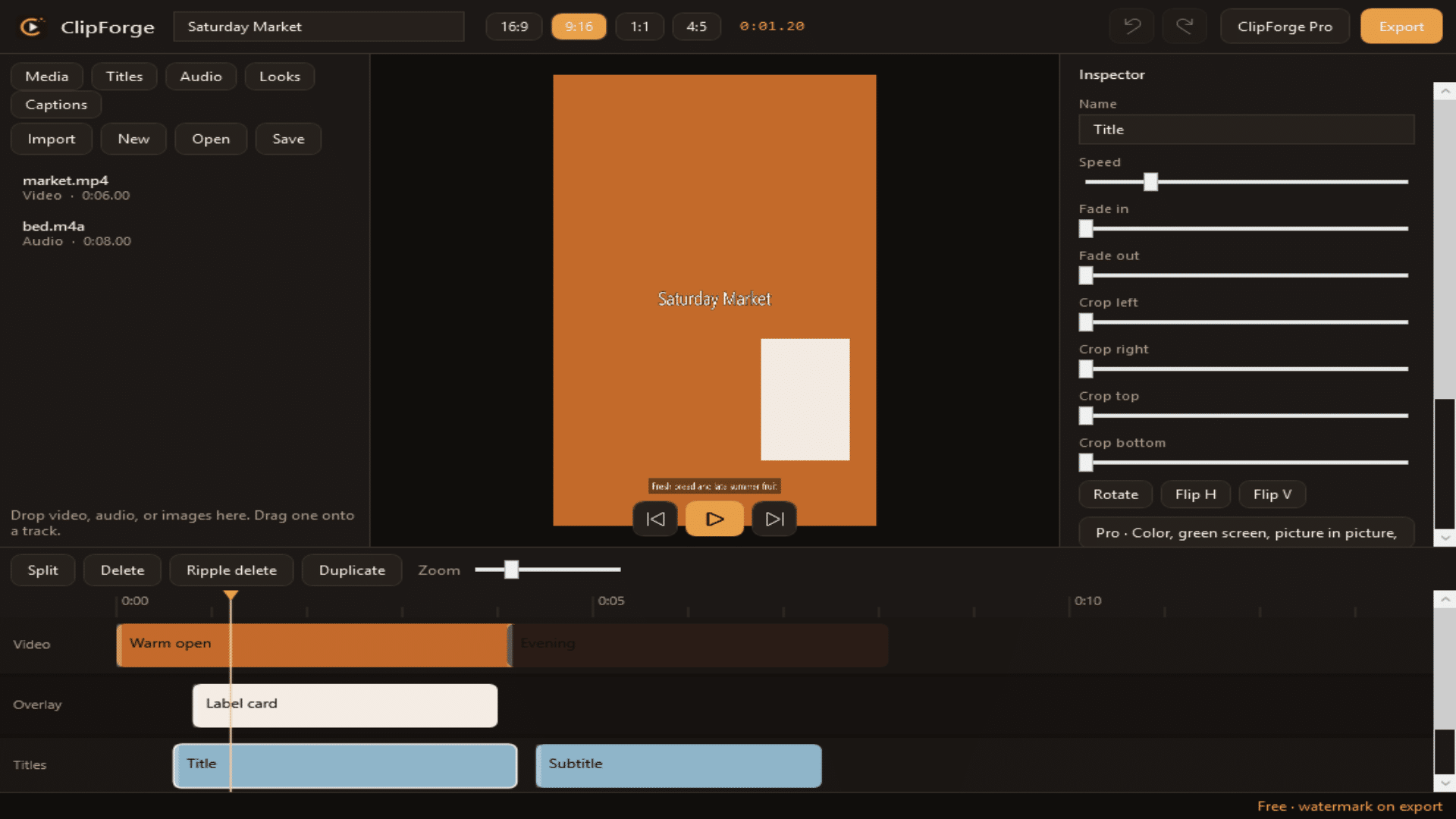
Choose ClipForge if you want a Windows-first editor, you are comfortable building a video on a timeline instead of starting from a template, and you prefer that media and captions stay on your PC. It is a good fit for YouTube, Shorts, and Reels when you already have your own footage.
Stay with CapCut, or use both, if your work depends on CapCut’s template library, its effects catalog, or a phone-to-desktop project you already have in that app. ClipForge does not replace that ecosystem, and it is not trying to impersonate it.
How to install ClipForge on Windows
- Open the ClipForge page on the Microsoft Store.
- Select Get or Install. Windows signs you into the Store if you are not already signed in.
- Launch ClipForge, import a video, and drop it on the timeline.
- Edit, preview, and export. If you want Pro, subscribe from inside the app through the Microsoft Store. You can restore a purchase on the same Microsoft account if you reinstall later.
ClipForge is listed as ClipForge – Amezing in the Store. That is the reserved name for this app from Amezing Tech. The app you install is ClipForge.
Frequently asked questions
Is ClipForge a good CapCut alternative for PC?
Yes, if what you want is a native Windows timeline editor with Shorts and Reels export, optional on-device captions, and no ClipForge account. It is not a full stand-in for CapCut’s templates and mobile ecosystem. For “CapCut alternative for PC” and “apps like CapCut for Windows,” it is built for the desktop half of that search.
Does the free version add a watermark?
Yes. Free exports include a small “Made with ClipForge” line. ClipForge Pro removes it.
Can I get a CapCut alternative without a watermark?
With ClipForge, watermark-free export is a Pro feature. Subscribe in the app through the Microsoft Store. We do not ask you to sideload a cracked editor or bypass anyone’s paywall.
Do auto captions need the internet?
Captions run on your computer after a one-time download of the speech model. After that, you can caption a video offline. Projects are not sent to a ClipForge server to generate text.
Does ClipForge work without a VPN?
ClipForge is a Microsoft Store app for Windows. You install it from the Store the same way you install other Store apps in your region. This page does not make claims about any other company’s regional availability.
Is ClipForge affiliated with CapCut?
No. ClipForge is an original app from Amezing Tech. Mentions of CapCut on this page are only to compare products, which is allowed as nominative fair use. Do not treat ClipForge as a CapCut download, skin, or unofficial build.
Get started
Install ClipForge from the Microsoft Store, edit a short clip on the timeline, and export a test MP4. If the free editor covers your work, you can stay there. If you need captions, 4K, or export without the ClipForge line, try Pro from inside the app.
